Secure Exam Settings
Admin Expert TA
2020-09-03T14:04:49+00:00
Best Practices for Configuring Secure Exams
Academic Integrity Preferences Settings
In the main menu from the Class Management area you can access Instructor->Academic Integrity Preferences. We strongly recommend that you turn on all features available in this area. You will be able to write your own Honor Code / Assignment Policy and have that displayed to students each time they open an assignment. We recommend that you specifically address the topic of students posting their problem to the internet to be solved by someone else.
You can also choose to turn on In-Assignment Deterrents which consist of tracking ids and personally identifiable information displayed in the assignment area. Students are far less likely to post an image of their problem to the internet to be solved, if the image contains information that allows the instructor to identify the student who posted the problem.
Grade Preference Settings
The following are Expert TA’s recommended Grade Preference settings for high stakes assessments. You can create a new grade template for your exams using the Add Template function on the left side of the Grade Preference screen.
|
Hints and Feedback
Disable hints and feedback for quizzes and exams.
|
|
Access to Correct Answer
Disable the ability for students to see if their final submission matches the correct answer for the given problem in Expert TA.
|
|
Randomization
Randomized Variables – Problems are designed in such a way that each student receives a different value of a key variable and will thus get a different answer.
Randomized Phrases – Placeholders for words and phrases within a problem statement can be randomized to provide a slightly different version of the question. The Physics concept is the same, but the situation changes slightly for each student.
|
|
Access to Printable Assignment
Disable the ability for students to print off a hard copy of their exam and quizzes.
|
|
Indicate if Submission Correct
With the setting disabled, students will not be told that their submission is correct/incorrect, but just that that their submission has been saved successfully.
|
|

|
Assignment Editor
Below is a screen-capture of the Assignment Editor and settings that Expert TA recommends instructors implement for secure online exams within the Assignment Editor page.
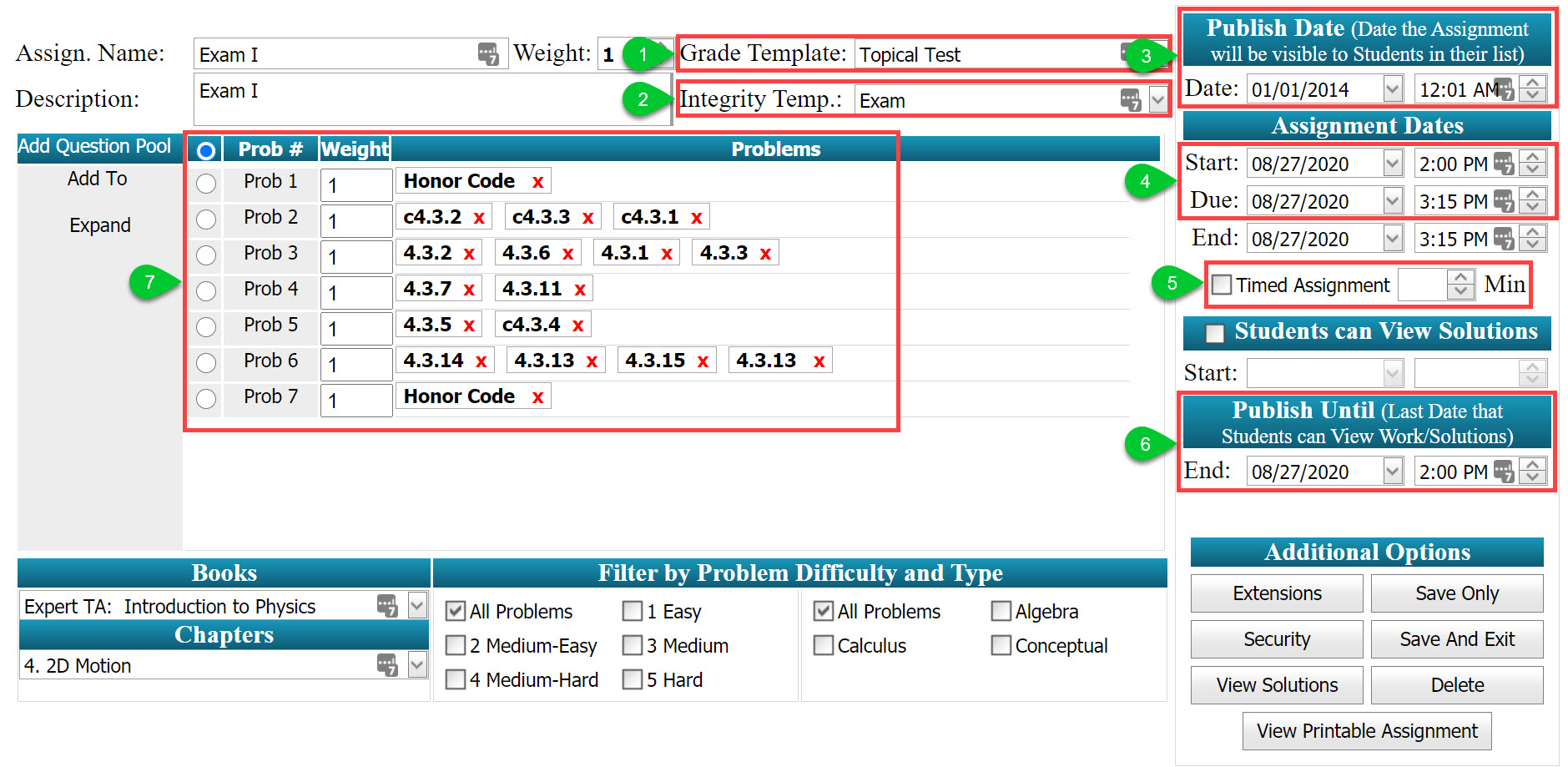
- Grade Template
Apply your exam grade template to the assignment.
- Integrity Template
Apply the academic integrity template to your assignment to enable academic honor code/policy page and in-assignment deterrents.
- Publish Date
Publish “visible” date allows students to see the exam in their assignment list. We recommend this to be 15 or 30 minutes prior to the exam start time, so students can make sure they are logged in and ready once the exam opens. After the exam closes, the ‘visible’ date can be pushed temporarily to a future date/time, so students can’t see the exam scores until you’re ready for them to be released.
- Assignment Dates
The window of exam availability will be between the Start and Due Date. The End Date should match the Due Date so that no late work is allows. Expert TA recommends adding a buffer of time for the assignment availability versus the actual time allowed to take the assignment noted in the timed assignment box.
Example 60-minute exam: We recommend the period of time from the start date/time to the due date/time is set to a 75-minutes with a 60-minute timer. A small buffer could account for students joining late, but still having full time to complete the exam.
- Timed Assignments
Check the box and enter the desired time for the exam.
- Publish Until Date
Set to the exact same date/time as the start date/time. This means students cannot see details of the assigned problems along with their specific answers for the exam once completed.
- Question Pools
When creating assignments, instructors have the option to add problems into question pools (a group of problems from which one will be randomly chosen for students to work on in a given assignment). This means that instead of all students receiving assignments with identical problem ordering, each student will get a slightly different version through the random selection of problems from one or more problem pools.